The Power User Guide to MILO

Conference Power Guide · Alpha Edition
MILO is built for moments when your network expands faster than your memory.
This guide is written for power users - operators, founders, BD leads, and professionals - who are actively meeting people, exchanging Telegrams, and moving quickly through conferences like Solana Breakpoint, Abu Dhabi Finance Week or Token 2049.
Before we begin, one thing up front:
Before diving in, a quick note on context. In reading this, please remember that we keep your messages secured on encrypted servers and place privacy and security at the top of our efforts. This guide is written to help you get the most out of your experience with MILO. We assumes you’ve already been personally onboarded, have read the existing material and/or see the value in our services.
If this is your first time encountering Pantheon or MILO, we recommend reviewing our website, policies and past blog posts for context - including:
👉 Our Introduction to MILO and/or Introduction to Pantheon.
Getting Started: /start
[video of onboarding flow]
The first thing you’ll do with MILO is type /start.
Recommended setup
When you first onboard, MILO defaults to running with all required rules and permissions enabled through Telegram Settings → Business → Chatbots. We recommend leaving this as-is. Milo will ping you directly if not.
This ensures:
- contacts are captured in real time
- nothing needs to be added manually
- no relationships are missed during busy periods (especially conferences)
You can always adjust this later:
- remove MILO from a specific chat
- temporarily stop tracking for a conversation
- fine-tune privacy controls as needed
Starting with the default setup simply gives you the smoothest experience from day one.
Contacts: How Do You Actually “Add” People?
Short answer: you don’t.
MILO does it for you - instantly.
How it works
You message people on Telegram exactly as you normally would.
The moment:
- you send a message, or
- you receive a message
That person is added to your personal contact book in real time. No delay. No sync button.
You can try this right now with @milopabot.
Assumption:
This works when all rules are enabled and the contact isn’t excluded.
Contact notifications
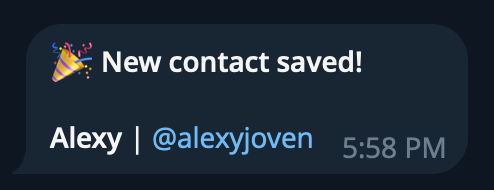
Each newly added contact triggers a private contact card in your chat with MILO.
Sometimes you’ll see a new contact saved with:
- a name + username
- just a name
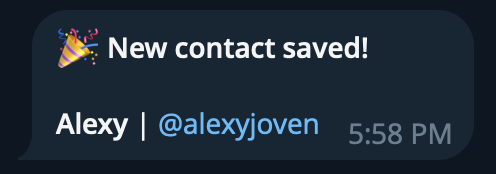
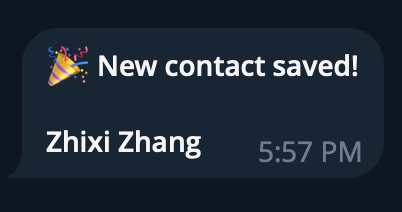
This is normal - some Telegram users don’t have usernames.
Fun fact (and a quiet superpower)
We coordinate relationship updates across the network - privately.
If:
- you add “John” today
- you don’t talk to him for 6 months
- but another MILO user messages “John”
Your relationship with “John” is updated in real time - only if John already exists in your contact book.
This:
- eliminates lost contacts keeping relationships fresh
- works silently in the background
- exists for life
You don’t lose people anymore.
Super Power Feature: Stealth Add (Backdating Contacts)
There’s one thing MILO cannot do automatically:
We can’t access people you messaged before MILO was added or existed.
So we built a stealth workaround.
The "." trick
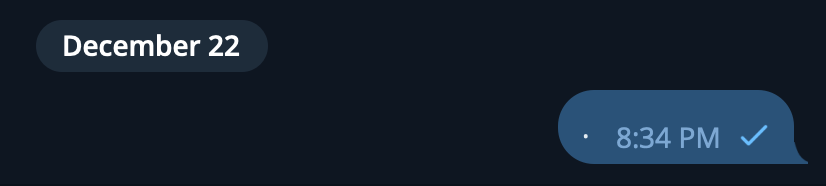
Send a single period . in a DM.
- It lives for ~1–2 seconds
- It self-destructs
- It quietly adds the relationship
When to use this
When you're home from a conference:
- take 5 seconds per person
- scroll your Telegram history (web is the best)
- send
"."to everyone you’ve ever interacted with
As long as:
- they’re not excluded by you
- MILO is enabled in the chat
That relationship is now backed up and preserved. Most people never notice it unless they’re staring at Telegram at that exact moment.
This is how you retroactively build a lifetime contact book.
Notes: The Core of Conference Mode
Notes are where MILO shines - and they’re always private to you.
Even on team or enterprise plans (coming soon):
- you are your own silo
- nothing is shared unless you export or share it
There are three ways to add notes.
1) Reply directly to contact cards (recommended)
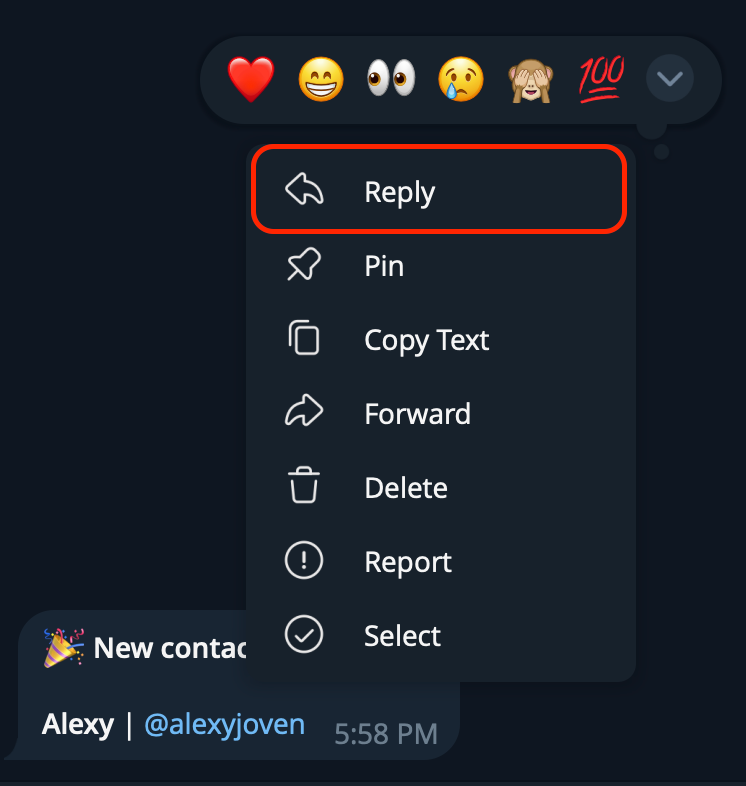
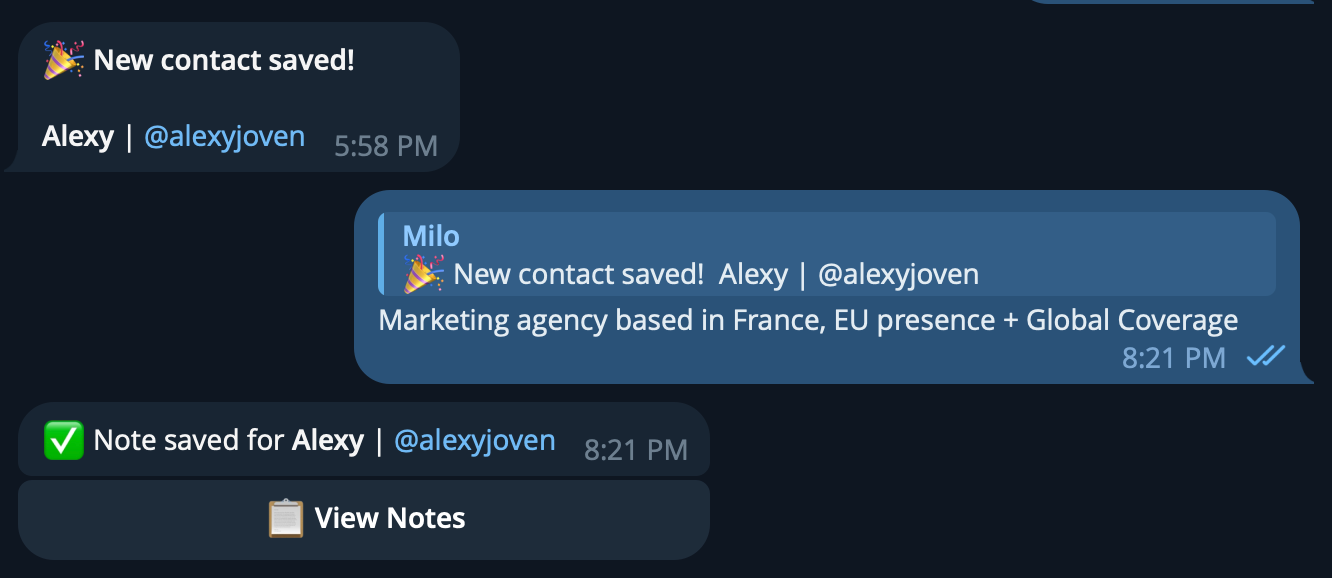
When you add a new contact:
- MILO sends you a private contact notification
- reply to that message
- type your note
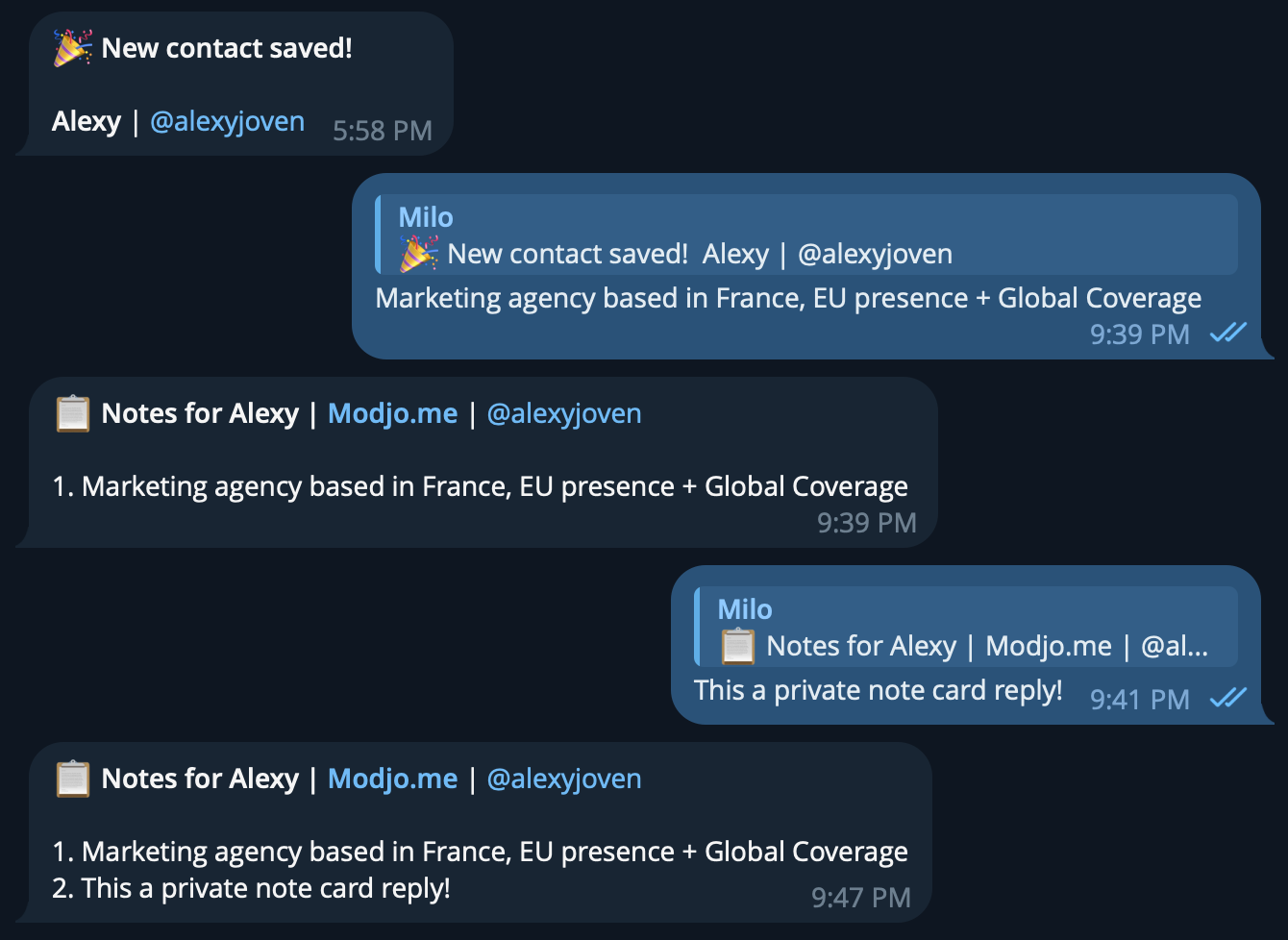
That note is saved instantly. Same thing applies when you reply to:
- view notes or saved notes
2) Use /note in private chat with MILO
If you remember something later:
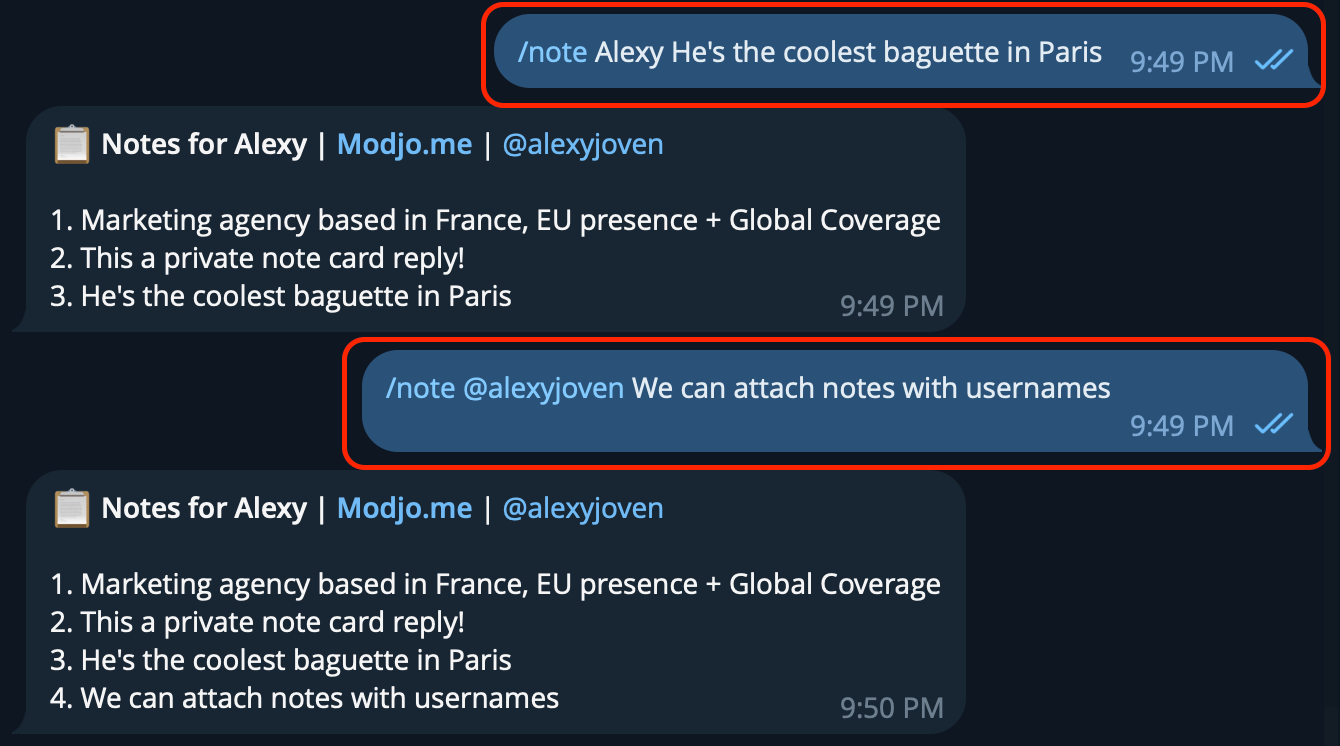
MILO will automatically:
- pull the best match (recent or historical)
- show a menu if needed
- save the note privately
This is the cleanest and safest method.
3) /note directly inside a DM (semi-private)
When you’re in a rush:
- mid-conference
- no screen switching
- one hand on your phone
You can type directly in a chat:
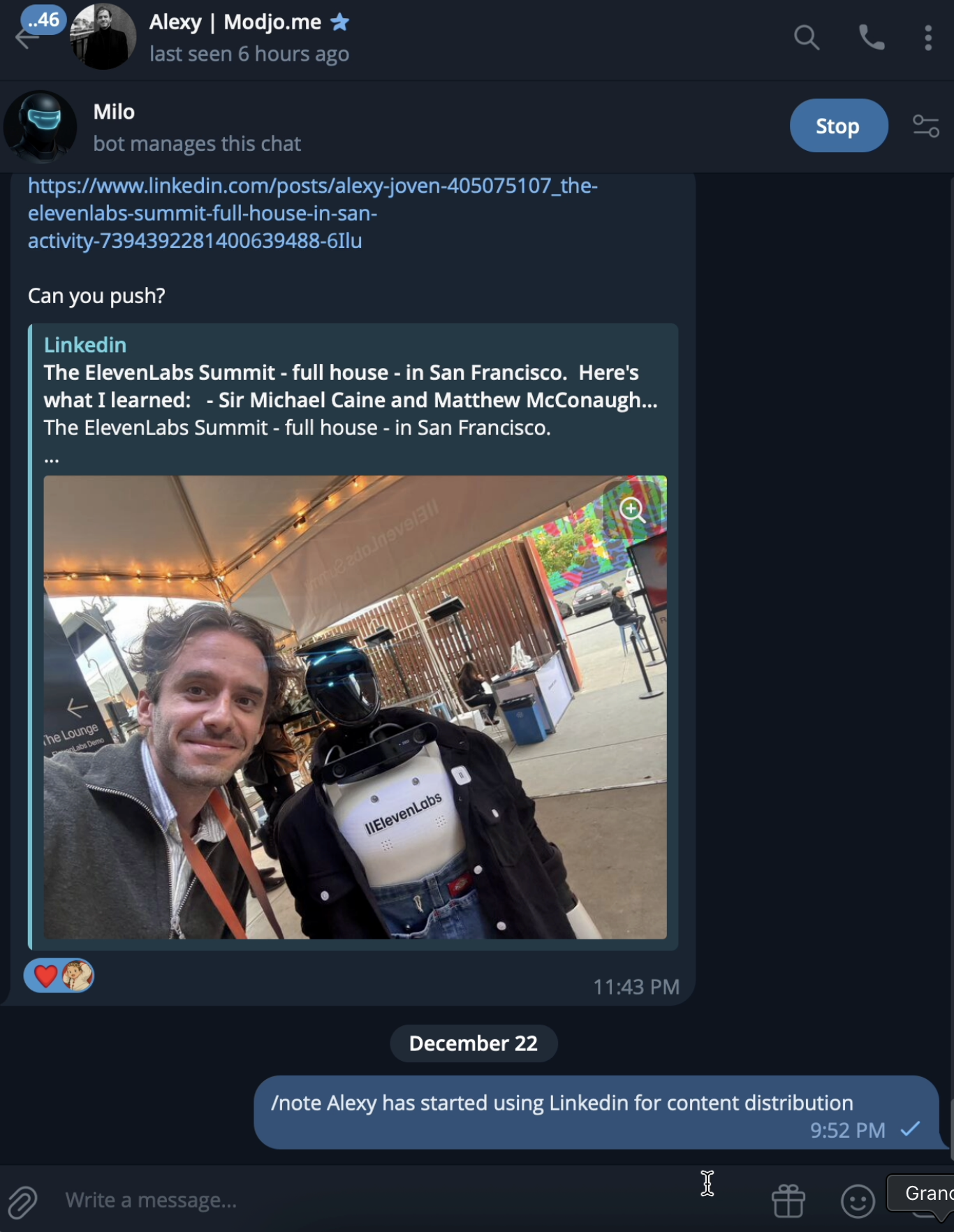
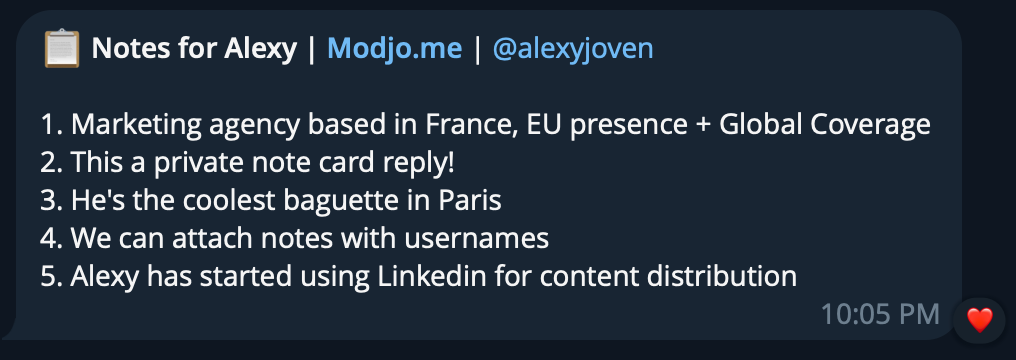
/note Alexy's a solid baguette — follow up next week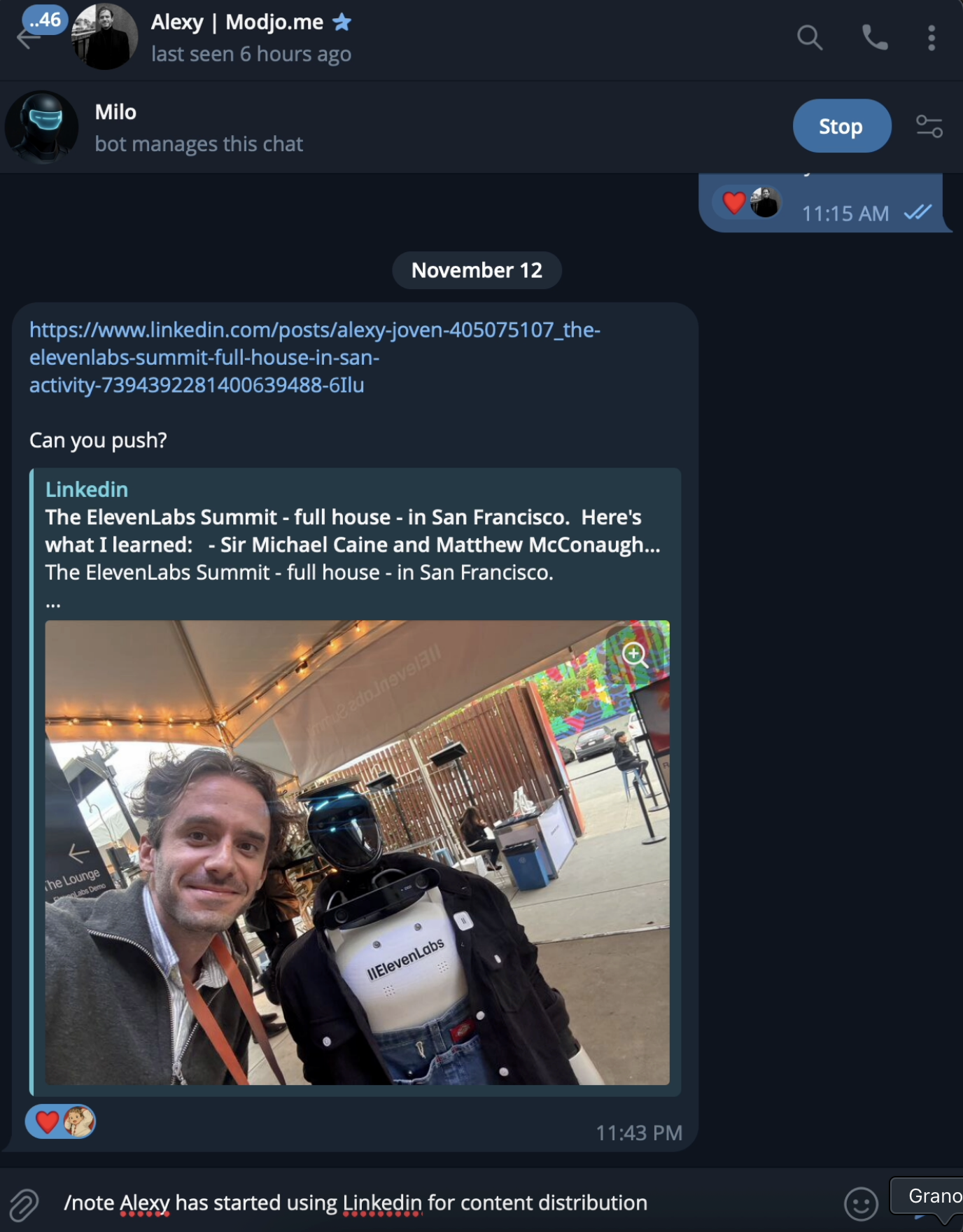
What happens:
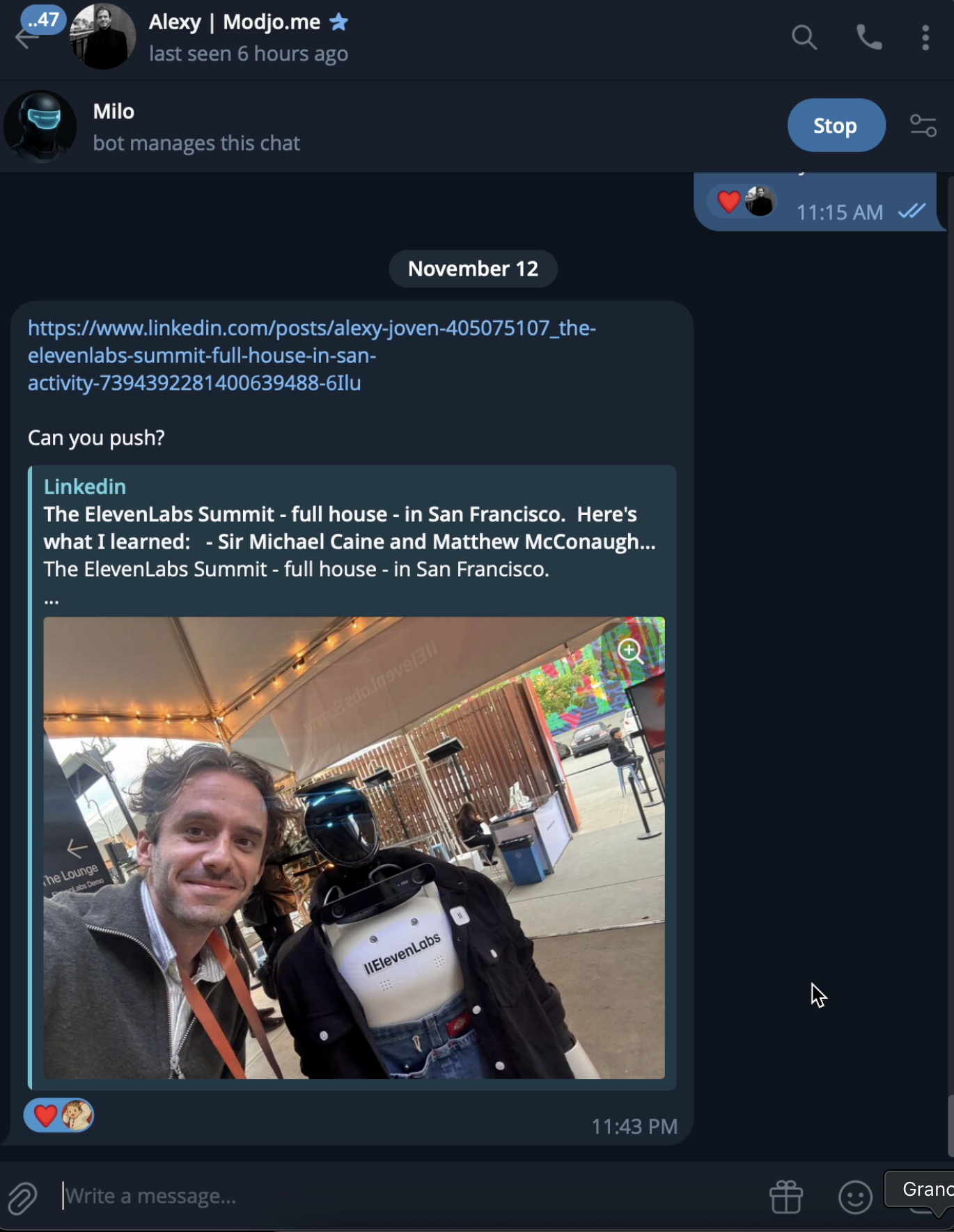
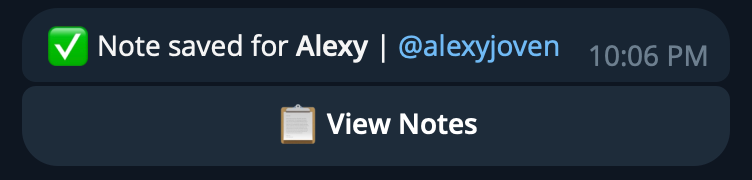
- the message self-destructs
- MILO saves the note
- you get a private confirmation
⚠️ Important privacy nuance (read this)
During our live battle test at Breakpoint, we observed a real-world edge case if:
- the recipient has poor connection
- they disconnect
- they jump on a flight
Telegram may:
- deliver the message
- and delay deletion until they reconnect
This is rare, but it happens.
This feature is powerful - just use it intentionally.
Viewing Notes
You can view notes in a few simple ways:
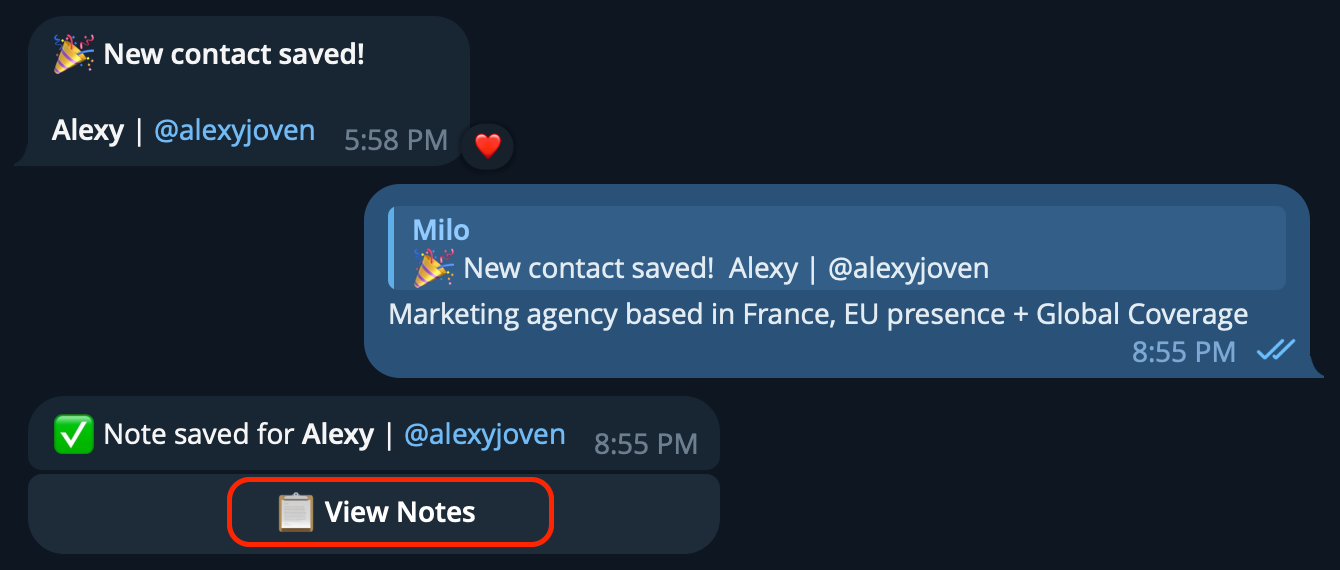
- Tap the View Notes button whenever it appears in your chat with MILO
- Type
/notes John(or/notes @username) to pull up notes for the most recent or best-matching contact - Access all saved notes through your exports
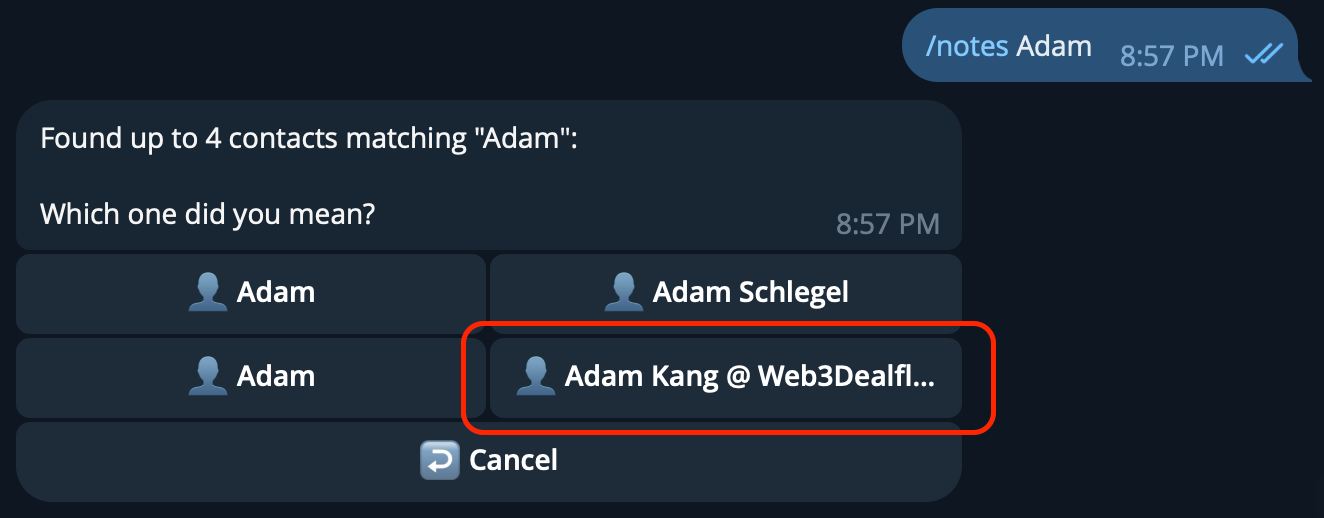
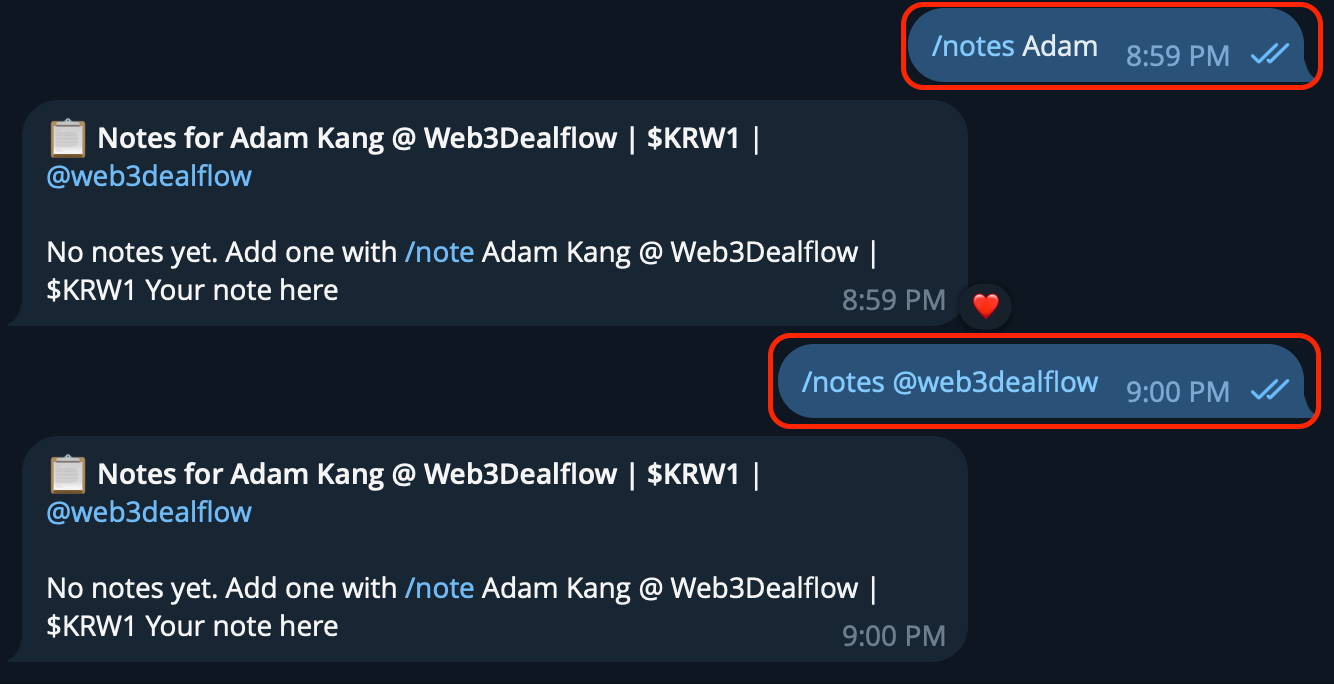
A light menu will pop up for contacts if there's no explicit match within the past 48 hours. Type @username for the best results!
Exports — Using /export Like a Pro
Exports are how you turn a busy week into something usable.
If you’re a new user, you’re probably just typing:
This exports everyone in your contact book. It’s simple, it works well, and it’s the fastest way to see the full picture.
If you’ve been using MILO for a while - or you’ve just come back from a conference - this is where it gets more useful.
Date-filtered exports (post-conference mode)
All dates use the following format YYYY-MM-DD and are inclusive.
- Everyone you met from December 1st onward:
- Everyone you met between two dates:
- Everyone you met before a specific date:
- you just came back from a conference
- you want a clean follow-up list
- you’re handing data to your CRM, assistant, or team
Privacy & Controls (For Power Users)
This is the serious part.
Global setup
For everything above to work smoothly:
- MILO needs to be enabled with permissions
- this is usually done once during onboarding
You can maintain an exclude list in your Telegram business settings, but we recommend:
- messaging a contact at least once with MILO enabled
- then excluding if needed
Otherwise, that relationship may only exist inside Telegram and not your long-term book.
In-chat controls (real time)
Within each chat, you’ll see a “Managed by MILO” toolbar.

This gives you immediate control over what’s tracked, in real time:
- START/STOP — pause/resume tracking for the conversation in real time.
- REMOVE — remove MILO from the chat entirely
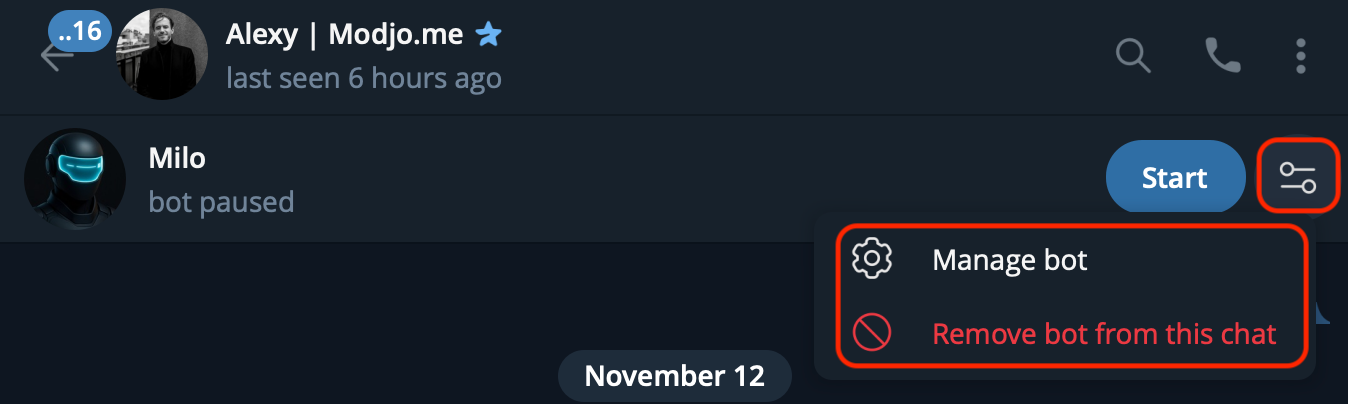
If you want to keep someone in your contact book but don’t want MILO present:
That person stays in your book. Everything here is explicit and reversible — Nothing else is tracked.
It’s black and white.
Closing Thoughts
MILO isn’t a chatbot. It’s not a CRM you “maintain.”
It’s an operating layer that runs quietly while you work.
Conference mode is about:
- zero friction
- zero loss
- capturing context and leads while they're fresh
Use it deliberately, and you’ll never leave a room wondering
“Wait… who was that again?”
If you ever need help:
And thank you - genuinely - for trusting us during alpha.
We’re building this with you, not around you.
Developer Notes (Recent Updates)
- Fixed formatting issues in notes and contact cards (escaping characters should now be gone)
- Improved contact exports, including correct inclusive date filtering
- Added stronger handling for upstream service errors to prevent partial or inconsistent data capture
- Fixed edge cases in notes, contacts, and menu routing that could break under heavy usage
- Improved notification behavior (including preventing misfires to blocked users)
- General stability and UI polish following conference-week load